
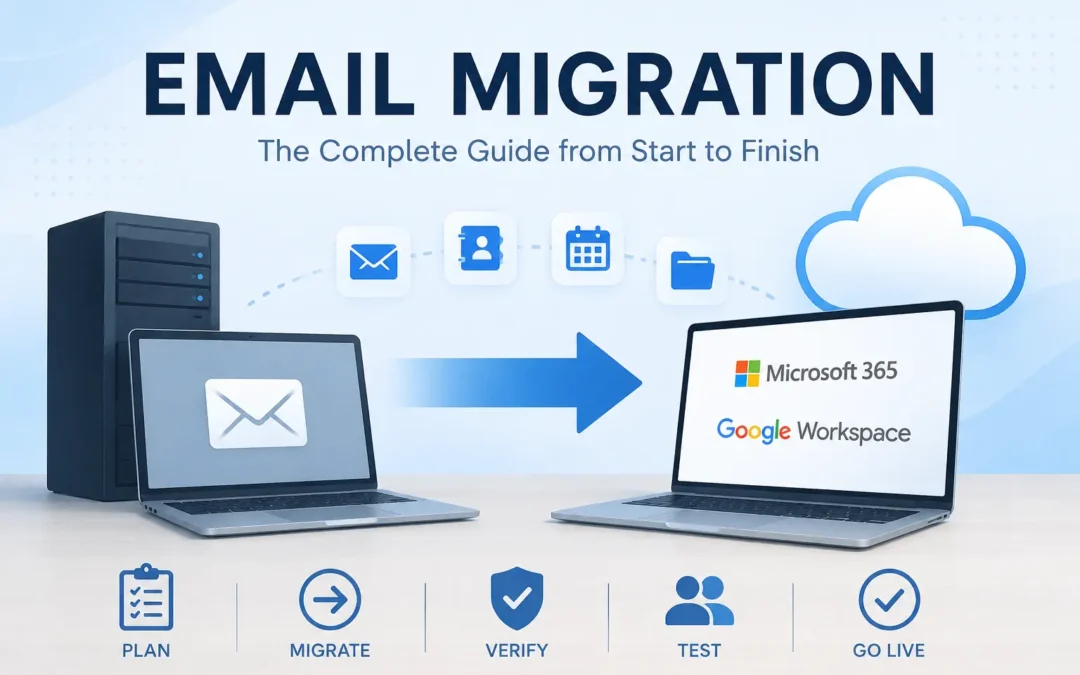
If your company is switching email platforms, or even just moving from one server to another, you’re probably considering whether a professional email migration service is right for you. But what does professional email migration entail? What happens to your messages, your contacts, your calendar events, your carefully organized folders? And who’s responsible for making sure none of it disappears?
This guide walks through the entire email migration process in plain language, from the planning stages all the way to the moment your team logs into a new inbox and everything just works. Whether you’re moving to Microsoft 365, Google Workspace, or a managed hosted solution, the core process follows a familiar arc, and understanding it ahead of time makes the whole thing far less stressful.
What Is an Email Migration?
An email migration is the process of moving email data (messages, folders, contacts, calendars, and account settings) from one email system or provider to another. It sounds straightforward, but in practice it involves careful planning, data auditing, technical configuration, and user coordination.
Migrations happen for all kinds of reasons. A growing business might outgrow a shared hosting environment. A company going through a merger needs to consolidate two separate email systems into one. An organization fed up with spam, downtime, or poor support decides to move to a managed email platform. In each case, the goal is the same: get everyone’s data moved accurately, minimize downtime, and make sure nothing slips through the cracks.
The scope of an email migration varies widely. A five-person startup migrating to a new provider is a very different undertaking than a 500-seat enterprise migration with years of archived mail, shared mailboxes, distribution lists, and compliance requirements. But the fundamental steps are consistent regardless of size.
The Stages of an Email Migration
1. Discovery and Planning
Every successful email migration begins long before a single email is moved. The discovery phase is where the team takes stock of what exists and what the destination environment needs to look like.
This means inventorying all active mailboxes, shared accounts, aliases, and distribution groups. It means documenting how much data is involved, not just the number of mailboxes, but total data size, which matters for estimating how long the migration will take. It also means identifying any special cases: executive accounts with years of archived mail, shared departmental inboxes, or accounts tied to automated processes that send and receive email on behalf of applications.
During planning, the team also maps out the migration approach. Will this be a cutover migration, where everything moves in one shot over a weekend? A staged migration, where departments move in waves over several weeks? Or a hybrid approach where the new environment runs in parallel with the old one while data syncs in the background? Each has trade-offs in terms of complexity, risk, and disruption to end users. Article: Cutover vs. Staged Email Migration
A realistic timeline gets set here too. Rushing an email migration is one of the most common reasons they go wrong.
2. Pre-Migration Environment Setup
Before any data moves, the destination environment has to be built out. This means creating all the user accounts on the new platform (often provisioned from a directory like Active Directory or Azure AD) and configuring the settings that will govern how email flows once the migration is complete.
This is also when DNS records are reviewed. Your MX records (the ones that tell the internet where to deliver email addressed to your domain) will eventually need to be updated to point to the new server. During this phase, those records are prepared but not yet changed. The new environment is essentially standing by, ready to receive mail, but the world doesn’t know about it yet.
Security settings get configured here too: SPF, DKIM, and DMARC records that authenticate your outbound email and protect against spoofing. Missing any of these can cause your outgoing email to land in spam after the migration — a problem that often doesn’t show up until users start complaining that nobody is responding to their messages.
3. Data Migration
This is the part most people picture when they think about email migration: the actual transfer of data from the old system to the new one. Depending on the platforms involved, this happens via a migration tool, an API connection, or in some cases a direct server-to-server sync.
Modern migration tools (like BitTitan MigrationWiz, Microsoft’s Exchange Online migration capabilities, or Google’s data migration service) handle the heavy lifting. They connect to both the source and destination environments, authenticate on behalf of each user, and begin pulling data across. Messages, folders, attachments, calendar items, and contacts are all transferred and mapped to the equivalent structure in the new system.
A few things worth knowing about this phase:
It takes time. Depending on data volume and connection speeds, migrating mailboxes can take anywhere from a few hours to several days. Large archives, particularly those with thousands of large attachments, can be especially slow.
It usually happens in passes. Most migration tools do an initial bulk pass — copying everything up to a certain point — and then do a delta sync closer to the cutover date to capture anything that arrived or changed in the meantime. This incremental approach reduces the window during which things could go out of sync.
Not everything migrates perfectly. Certain items — meeting requests, some calendar metadata, tasks, or notes — don’t always translate cleanly between platforms. A good migration plan accounts for known data fidelity issues between specific source and destination systems and communicates them to users in advance.
4. Testing and Validation
Before flipping any switches for end users, a thorough testing phase confirms that the migration is working the way it should. This typically involves migrating a small group of pilot users — often IT staff or willing volunteers from each department — and having them verify that their data arrived intact.
Testers check that folder structures are preserved, that older messages are present and readable, that contacts imported correctly, and that calendar events (especially recurring ones) look right. They also send and receive test emails to confirm that mail flow is working as expected on the new platform.
This is also when any surprises tend to surface. Maybe a particular shared mailbox didn’t migrate because of a permissions issue. Maybe a department’s calendar delegation broke. Maybe an alias didn’t get set up correctly and mail to a secondary address is bouncing. Better to find these things in testing than after the whole company has switched over.
5. DNS Cutover
The DNS cutover is the moment the migration goes live for the outside world. When MX records are updated to point to the new email server, inbound mail starts routing to the new environment. This change propagates across the internet over a period of up to 48 hours (though in practice it’s usually much faster — often within an hour or two).
Timing matters here. Most organizations schedule the cutover during off-peak hours — late Friday night or early Saturday morning — to minimize the impact on business. During the propagation window, some mail may still arrive at the old server, which is why most migrations keep the old environment online and forwarding for a period after the cutover rather than shutting it down immediately.
6. User Onboarding and Configuration
Once the cutover is done, users need to be set up on the new platform. This might involve reconfiguring their email clients (Outlook, Apple Mail, Thunderbird), setting up mobile devices, or simply logging into a new web interface for the first time.
For organizations with a dedicated IT team or a managed services provider, this is often handled proactively — profiles get pushed to desktops via device management tools, and users log in to find everything already configured. For smaller teams, it might mean a round of help desk tickets from people whose phones stopped syncing.
Clear communication in the days leading up to the cutover goes a long way. Users who know what to expect, what they need to do, and where to get help tend to have a much smoother experience than those who arrive at work Monday morning to find their email looks completely different with no explanation.
7. Post-Migration Support and Cleanup
The first week or two after a migration tends to generate more help desk activity than usual. Users discover missing items, run into settings that weren’t configured to their preferences, or encounter edge cases that testing didn’t catch. A good migration plan anticipates this and staffs accordingly.
During this window, the old email environment is typically kept alive in read-only mode as a fallback reference, just in case something didn’t make it across. Once the team is confident the migration is complete and stable, the old environment gets decommissioned.
Cleanup tasks also include removing redundant accounts, archiving data per any applicable retention policies, and documenting the new environment’s configuration for future reference.
Common Email Migration Mistakes to Avoid
Even with careful planning, a few pitfalls come up repeatedly. Here are the ones most worth watching out for:
Underestimating data volume. Migrations that were scoped for 50GB of data often turn out to involve 150GB once shared mailboxes and archives are counted. Audit everything before you commit to a timeline.
Neglecting DNS preparation. SPF, DKIM, and DMARC records need to be set up at the destination before the cutover, not after. Forgetting them is a reliable way to get your outbound email flagged as spam.
Not communicating with users. People are surprisingly forgiving of technical changes when they’re informed in advance. They’re far less forgiving when they find out by discovering that their email stopped working.
Skipping the pilot group. Testing with a small subset of users before the full migration catches the majority of issues at a fraction of the disruption cost.
Rushing the cutover. If the migration is running behind schedule, the instinct is often to push forward anyway and fix problems afterward. In most cases, a brief delay to make sure things are right is far less painful than a rollback.
How Long Does an Email Migration Take?
This is usually one of the first questions people ask, and the honest answer is that it depends largely on the size and complexity of the environment.
While some time is always needed to properly plan and prepare for a migration, the actual email data transfer itself is often much more straightforward than people expect.
For small environments (around 10–20 users with typical mailbox sizes), the data transfer phase can often be completed in a few hours and, in many cases, fully finished within a single business day.
For mid-sized organizations (roughly 100–500 users), the transfer is typically handled in batches or staged waves. Each batch may complete within a day or overnight, allowing the full data migration to be completed incrementally without long periods of disruption.
For larger enterprise environments, the same principle applies: the data is moved continuously in controlled phases. Even when dealing with large volumes of mailboxes, individual transfer windows are usually measured in hours, not weeks.
In most cases, the bulk of the timeline is driven by preparation, coordination, and validation rather than the actual movement of email data. The transfer itself is designed to be efficient, repeatable, and as close to seamless as possible for end users.
FAQ: Email Migration Questions Answered
Does email migration cause downtime? It doesn’t have to. Most modern migrations are designed to run with zero or near-zero downtime, especially when done in stages. The DNS cutover window — typically a few hours — is the period of greatest risk, but with proper planning and a fallback in place, most users experience little to no interruption.
Will I lose any emails during the migration? When done correctly, no. A well-executed email migration preserves all messages, folders, and attachments. However, certain types of data (like some calendar metadata or locally stored email not synced to the server) may not transfer, depending on the source and destination platforms.
What happens to emails sent to me during the migration? During the DNS cutover, email delivery follows the MX records. As those records update, mail routes to the new server. Most migration setups include a period where the old server continues to receive and forward mail to the new one, ensuring nothing is lost in transit.
Do I need to reconfigure my email client after migration? Possibly. If you’re moving to a different platform (say, from a hosted Exchange environment to Microsoft 365), your email client may need to be reconfigured or your profile recreated. If you’re staying on the same platform but with a new provider, the experience may be seamless.
Can I migrate email from any platform? Most major platforms — Microsoft Exchange, Microsoft 365, Google Workspace, Zimbra, IMAP-based systems — are supported by modern migration tools. The complexity and fidelity of the migration can vary based on the specific source and destination pairing.
What’s the difference between a cutover migration and a staged migration? A cutover migration moves all mailboxes at once — typically over a weekend. It’s simpler but higher-risk, and practical only for smaller organizations. A staged migration moves users in groups over a longer period, reducing risk and allowing the team to learn and adjust along the way.
How do I know if a migration was successful? At minimum: all users can send and receive email, historical data is present and accessible, calendar and contacts have transferred, and no mail is being lost or misrouted. A formal post-migration checklist run against each mailbox is the most reliable way to verify.
Should I hire someone to manage the migration, or handle it in-house? It depends on your team’s expertise and the complexity of the migration. Small, technically savvy teams can often handle straightforward migrations themselves. For anything involving complex legacy environments, compliance requirements, or large user counts, working with a specialist, whether a managed service provider or a migration consultant, tends to pay for itself in avoided problems. Looking for more info? Check out our Ultimate Guide to Email Migration
Making the Move With Confidence
An email migration doesn’t have to be a white-knuckle experience. The organizations that come out the other side with their sanity intact are the ones that treated it as a project with real phases, real risks, and real stakeholders — not just an IT task to knock out over a long weekend.
With the right planning, the right tools, and the right support, an email migration is an opportunity to set your team up with a more reliable, more capable platform. The disruption, when it happens at all, is temporary. The benefits of a well-run email environment compound over time.
If you’re weighing a migration and not sure where to start — or if you’ve been burned by a migration gone sideways in the past — our email migration services are built around making this process as smooth as possible for your team. We also offer ongoing email support and fully managed email administration for organizations that want expert hands on their email environment long after the migration is done.
EMNM eMail Migration n’ Management specializes in business email services including email migration, email support, and managed email administration. Learn more at emnms.com.
Recent Comments