
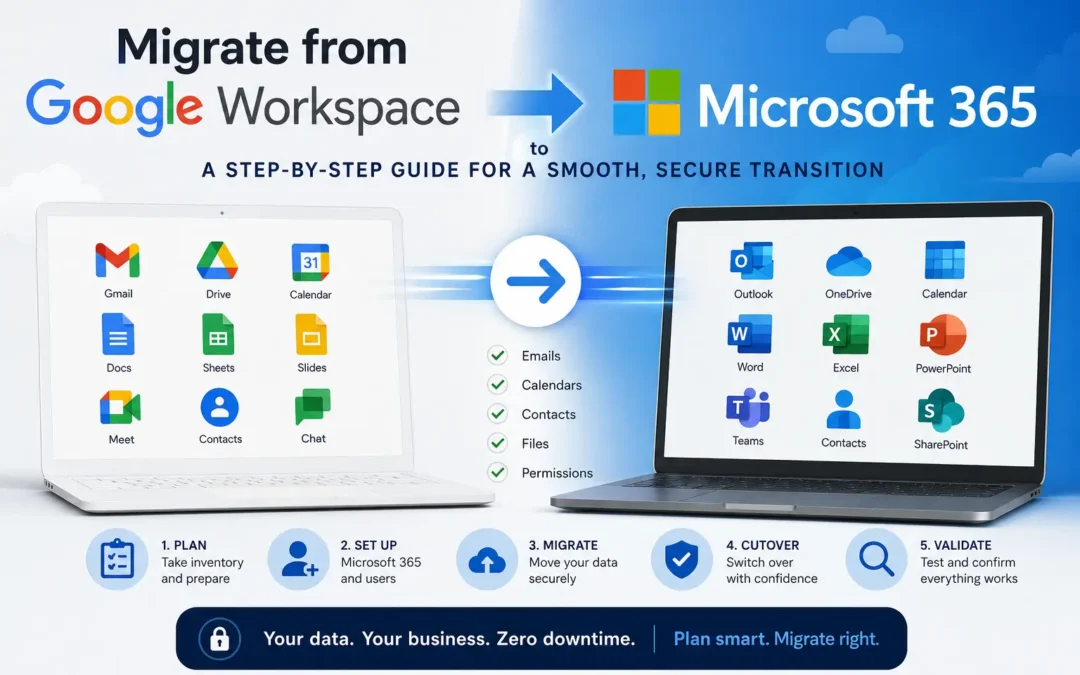
Switching your business from Google Workspace to Microsoft 365 is one of the most impactful technology decisions you can make and one of the easiest to get wrong.
The emails, shared drives, calendars, and contacts your team relies on every day all need to land in the right place, in the right format, without disrupting your business operations. When a migration goes smoothly, your team barely notices the switch. When it doesn’t, the fallout can include lost emails, broken file access, and days of productivity lost to cleanup.
This guide walks you through the entire process — from pre-migration planning through post-cutover validation — in plain language designed for business owners, not IT departments.
Why Businesses Switch from Google Workspace to Microsoft 365
Before diving into the how, it helps to understand the why. The most common drivers behind this migration include:
Deeper Microsoft Office integration. If your team relies on Excel, Word, or PowerPoint as thick desktop applications — especially for finance, legal, or complex document work — Microsoft 365 is simply a better fit than browser-based Google equivalents.
Security and compliance requirements. Microsoft 365 E3 and E5 plans include Microsoft Defender, Purview Information Protection, Data Loss Prevention, and Advanced eDiscovery built in. For businesses in healthcare, finance, or legal sectors, these built-in compliance controls reduce audit friction significantly versus Google Workspace, which often requires third-party add-ons for the same capabilities.
Client and partner alignment. Many businesses migrate because their major clients or partners are already on Microsoft 365 and collaboration is smoother within the same ecosystem.
Microsoft Teams adoption. Organizations already using Teams heavily often find it makes sense to consolidate everything under one Microsoft umbrella.
Whatever your reason, the migration process itself follows the same core steps. The difference between a smooth transition and a painful one comes down almost entirely to preparation.
What Actually Migrates — and What Doesn’t
Before you start moving anything, understand what transfers cleanly and what requires manual attention.
| Data Type | Migrates Automatically? | Notes |
|---|---|---|
| Emails (Gmail → Outlook) | Yes | Full history, folders, attachments |
| Contacts | Yes | Maps to Outlook contacts |
| Calendars | Yes | Events, recurring meetings, invites |
| Google Drive files (Office formats) | Yes | .docx, .xlsx, .pptx transfer cleanly |
| Google Docs, Sheets, Slides | Converted | Format conversion — review after migration |
| Google Shared Drives | Partially | Requires mapping to SharePoint; plan carefully |
| Gmail labels | No | Labels don’t map to Outlook folders; manual setup needed |
| Google Apps Script automations | No | Must be rebuilt as Power Automate flows |
| Google Forms | No | Rebuild in Microsoft Forms |
| Google Chat history | Varies | Requires third-party tools; not native |
| Google Meet recordings | No | Export manually before migration |
The biggest pain point for most businesses is Google Drive. Files stored as native Google Docs, Sheets, or Slides are converted to their Office equivalents during migration, and formatting doesn’t always survive perfectly. Spreadsheet macros written in Google Apps Script will not run in Excel. Plan for a manual review of your most critical documents after the move.
How Long Will This Take?
Migration timelines depend on how many users you have, how much data needs to move, and how prepared your organization is going in. Based on real-world migrations:
| Company Size | Typical Timeline |
|---|---|
| Under 25 users | 1–3 weeks |
| 25–100 users | 3–6 weeks |
| 100–500 users | 6–12 weeks |
| 500+ users | 3–6 months |
The email migration itself is usually the fastest part. What extends timelines is everything around it: shared drive migration (which is subject to Google API throttling limits), user training, DNS propagation, and troubleshooting edge cases.
One real-world example: a 22-person professional services firm with five years of Gmail history and extensive shared Drive folders completed their full migration in 18 days — because everything was documented in advance and decisions were made quickly. When leadership is decisive and IT has full account access, small migrations move fast.
Step-by-Step: How to Migrate from Google Workspace to Microsoft 365
Step 1: Take Inventory Before You Touch Anything
The number-one cause of migration failures is skipping the pre-migration audit. Before you move a single email, document everything:
- Users: List every Google Workspace user account, including suspended accounts and shared/service accounts
- Data volume: Check mailbox sizes for each user and total Google Drive storage in use
- Shared Drives: Document every Shared Drive, noting ownership, member counts, and data volume
- Third-party integrations: List every app connected to your Google Workspace (Slack, Salesforce, accounting software, etc.) — these will need to be reconfigured
- Google Apps Script automations: Identify any Sheets, Forms, or Docs automations your team relies on
- Google Vault: If you have data under legal hold or archive requirements, export this before migration
This inventory tells you exactly what you’re moving, flags potential problem areas, and gives you realistic timeline expectations.
Step 2: Set Up Your Microsoft 365 Tenant
If you don’t already have a Microsoft 365 account, this is where you start:
- Purchase Microsoft 365 licenses for all users. For most small and mid-size businesses, Microsoft 365 Business Premium or Business Standard covers the right combination of email, Office apps, Teams, and security features. See our Microsoft 365 plan comparison guide for help choosing.
- Add and verify your custom domain in the Microsoft 365 Admin Center. Microsoft will not proceed with migration until DNS verification is complete.
- Create user accounts in Microsoft 365 — either manually, via CSV bulk import, or through directory sync if you’re using Active Directory.
- Assign Exchange Online licenses so each user has an active mailbox provisioned.
Important: Do not switch your MX records to Microsoft 365 yet. Your email should continue flowing through Google Workspace while migration is in progress.
Step 3: Configure Google Workspace for Migration
Microsoft’s migration tools need API access to your Google environment. In the Google Cloud Console:
- Create a new project and set up a service account with a JSON private key
- Enable the Gmail API, Google Calendar API, People API, and Contacts API
- Grant the service account domain-wide delegation in the Google Workspace Admin Console — this allows Microsoft’s tools to access user data on behalf of your users
This step is the most technical in the entire process. If you don’t have an IT resource comfortable with Google Cloud Console configuration, this is where professional help pays off.
Step 4: Create a Mail Routing Subdomain
To ensure email keeps flowing during migration, you need to create a routing subdomain in Google Workspace. For example, if your domain is yourcompany.com, create gw.yourcompany.com and point its MX record to Google’s mail servers.
This allows Google Workspace to continue receiving email on the subdomain even after you eventually switch your primary domain’s MX records to Microsoft 365. Without this step, you risk email going to the wrong place during cutover.
Step 5: Run a Pilot Migration First
Before migrating everyone, test the process with a small group — ideally 5–10 users from different departments with varying data profiles. This gives you a chance to:
- Identify any failed items or formatting issues before they affect your whole team
- Spot any missed third-party integrations or apps that break
- Refine your communication and training approach
- Validate that the migration tools are configured correctly
Pilot migrations consistently reduce overall project timelines by exposing environment-specific issues early. Don’t skip this step to save time — it usually costs more time if you do.
Step 6: Migrate Email, Contacts, and Calendar Data
Microsoft provides a built-in tool called Migration Manager in the Exchange Admin Center that handles the Google Workspace to Microsoft 365 migration for email, calendar, and contacts. The process:
- In the Exchange Admin Center, go to Migration > Endpoints and create a new migration endpoint. Choose Google Workspace (Gmail).
- Provide the service account JSON key file and validate the connection.
- Go to Migration > New Migration Batch and upload a CSV file listing your users (source Gmail address and destination Microsoft 365 address in each row).
- Configure migration options including scheduling, email notification, and whether the batch completes automatically or manually.
- Start the migration batch and monitor progress in the Migration dashboard.
For most SMBs, Microsoft’s native tools are sufficient. If you need to preserve Google Chat history, have complex compliance requirements, or are migrating more than a few hundred users, third-party tools like BitTitan MigrationWiz or SkyKick add value through better mapping controls, scheduling, and reporting.
Step 7: Migrate Google Drive to OneDrive and SharePoint
Drive migration is typically the most time-consuming part. Personal Drive files map to OneDrive; team Shared Drives map to SharePoint document libraries.
Microsoft’s Migration Manager (separate from the mail migration tool, accessible in the SharePoint Admin Center) handles this workload. The six-step process:
- Connect to Google — sign in and install the Microsoft 365 migration app from the Google Workspace Marketplace
- Scan and assess — add Google Drives for scanning and download scan reports to identify any items that could block migration
- Copy to migration list — add Drives that scan as “Ready to migrate”
- Review destination paths — confirm that source folders are mapping to the correct OneDrive or SharePoint destinations
- Run pre-migration — copy data in the background while users continue working in Google Drive
- Migrate and monitor — run the final migration pass and monitor for errors
Note on Shared Drives: How a Shared Drive is owned in Google (personal vs. team-owned) affects how it needs to be mapped in SharePoint. Get this mapping right before migration runs, or you’ll spend days untangling permission issues afterward.
After migration, have users spot-check their most important files — especially any converted Google Docs, Sheets, or Slides — before decommissioning Google Drive access.
Step 8: Switch Your MX Records (The Cutover)
This is the moment email officially moves to Microsoft 365. MX records are DNS settings that tell the internet where to deliver email for your domain. Updating them to point to Microsoft 365 means new emails will arrive in Outlook instead of Gmail.
Best practices for the cutover:
- Schedule it during your lowest-traffic window — Friday evening or a weekend morning works well for most businesses
- Allow up to 48 hours for global DNS propagation, though most changes take effect within a few hours
- Keep Google Workspace active as a fallback for at least 30 days after cutover to catch any delayed emails
- Have a communication plan ready to notify your team the moment the switch is live
After updating MX records, send test emails from external accounts to confirm delivery is routing correctly into Microsoft 365.
Step 9: Post-Migration Validation and Cleanup
Don’t declare victory until you’ve confirmed everything works end-to-end:
- Email delivery: Test inbound and outbound email from multiple accounts
- Calendar events: Verify recurring meetings transferred correctly and invitations show accurate details
- Contacts: Spot-check contact records for accuracy
- File access: Have users confirm they can access their OneDrive files and the correct SharePoint libraries
- Third-party apps: Reconnect and test every integration that was connected to Google Workspace (e.g., Slack, Salesforce, your accounting software)
- Mobile devices: Ensure phones and tablets are updated to connect to Microsoft 365 instead of Google
- Email rules/filters: Gmail rules don’t migrate to Outlook — users will need to recreate any important filters
Step 10: Train Your Team
The technical migration can be flawless and still feel like a failure if your team isn’t ready to use the new tools. Budget time and resources for:
- A half-day or full-day training session on Outlook, Teams, OneDrive, and SharePoint
- Quick reference guides for the most common tasks people did differently in Google Workspace
- A support channel (could be as simple as a dedicated Teams channel) where people can ask questions in the first few weeks
- Manager-level training on any workflow differences that affect their teams specifically
User adoption is where migrations often stall. People default to old habits under pressure — and if they’re not comfortable in Microsoft 365, you’ll find them working around the new system.
DIY vs. Managed Migration: Which Is Right for You?
| DIY | Managed Migration Service | |
|---|---|---|
| Best for | Under 20 users, clean data, in-house IT | 25+ users, complex data, no IT staff |
| Cost | Low (mostly time) | $25–$65+ per user depending on scope |
| Risk | Higher — errors fall on you | Lower — experienced team handles edge cases |
| Speed | Slower without dedicated IT resources | Faster with structured project management |
| Tools available | Microsoft Migration Manager, Google Takeout | BitTitan, SkyKick, AvePoint + managed oversight |
For businesses under 20 users with a technically capable person on staff, Microsoft’s native tools are free and capable of handling a straightforward migration. For businesses with more complexity — multiple departments, compliance requirements, or no IT staff — a managed migration service is usually worth the investment.
At EMNMS, we handle Google Workspace to Microsoft 365 migrations for SMBs of all sizes. Learn more about our email migration services or contact us for a free migration assessment.
Common Mistakes to Avoid
Switching MX records too early. Cutting over before migration is complete causes email to arrive in a half-configured mailbox. Always let migration run fully before switching DNS.
Skipping the pilot migration. Running a full migration without testing on a small group first is how you discover problems at the worst possible time — when 50 users are offline.
Forgetting third-party integrations. Apps connected to Google Workspace (CRM, project management, accounting software) will break when the Google connection goes away. Audit every integration before you start.
Ignoring Google Apps Script automations. Teams often don’t realize how many automated workflows they rely on until they stop working. Inventory these early so you can plan their rebuild in Power Automate.
Decommissioning Google Workspace too quickly. Keep Google Workspace active for at least 30 days post-migration as a safety net. Delayed emails and overlooked files have a way of surfacing in the weeks after cutover.
Underestimating user training. A technically successful migration that leaves your team confused is still a failed migration. Don’t skip the training budget.
Frequently Asked Questions
How long does it take to migrate from Google Workspace to Microsoft 365? For small businesses under 25 users, a typical migration takes 1–3 weeks from start to finish. Businesses with 25–100 users should plan for 3–6 weeks. The actual data transfer is often the fastest part — timelines extend due to planning, testing, DNS propagation, and user training.
Will my team experience email downtime during the migration? When planned correctly, downtime is minimal to none. Your team continues using Gmail while migration runs in the background. The only disruption point is the MX record cutover, which typically causes a window of 1–4 hours where some emails may be delayed. Scheduling this during off-hours eliminates most business impact.
Do emails, contacts, and calendars all migrate automatically? Yes — email history, contacts, and calendar events all transfer through Microsoft’s migration tools. The main caveat is Gmail labels, which don’t map to Outlook folders. Users will need to manually recreate any important label-based organization as Outlook folders.
What happens to my Google Drive files? Google Drive files are migrated to OneDrive (personal files) and SharePoint (shared team files). Files already in Microsoft Office formats (.docx, .xlsx, .pptx) transfer cleanly. Native Google files (Docs, Sheets, Slides) are converted to their Office equivalents during migration — formatting generally transfers, but complex formatting and embedded macros should be reviewed after the move.
Can I migrate Google Workspace to Microsoft 365 myself? Yes, for smaller organizations with basic data and an IT-capable person on staff. Microsoft’s native Migration Manager is free and handles email, calendar, contacts, and Drive files. For more complex migrations — multiple departments, compliance requirements, or no internal IT — a managed migration service reduces risk and typically completes faster.
What does it cost to migrate from Google Workspace to Microsoft 365? The cost depends on whether you DIY or use a professional service. DIY costs are mainly your time plus any third-party tool licenses. Professional migration services typically range from $25–$65+ per user depending on scope, data volume, and the complexity of your environment. See our complete email migration cost guide for a full breakdown.
Do I need to keep paying for Google Workspace after migrating? Keep your Google Workspace subscription active for at least 30 days post-migration as a safety net for delayed emails and any files that need to be retrieved. After that period, you can safely cancel. Some businesses keep a minimal Google account for Google Analytics, Google Ads, or other non-email Google services.
What migration tools do professionals use? The most commonly used tools for managed Google Workspace to Microsoft 365 migrations include BitTitan MigrationWiz, SkyKick, and AvePoint FLY. Microsoft’s native Migration Manager (free, built into the Admin Center) is sufficient for most SMBs under 100 users when paired with proper planning.
Ready to Make the Move?
Migrating from Google Workspace to Microsoft 365 is a significant project — but it doesn’t have to be a painful one. With the right preparation, the right tools, and a clear plan, most businesses make the switch with minimal disruption and a team that’s up and running in Microsoft 365 within a few weeks.
If you’d rather focus on running your business than managing a complex migration project, that’s exactly what EMNMS is here for. Our team handles Google Workspace to Microsoft 365 migrations end-to-end, from pre-migration audit through post-cutover training — with zero data loss guaranteed.
Contact EMNMS for a free migration assessment and get a realistic timeline and cost estimate for your specific environment.
Related Reading:
Recent Comments