
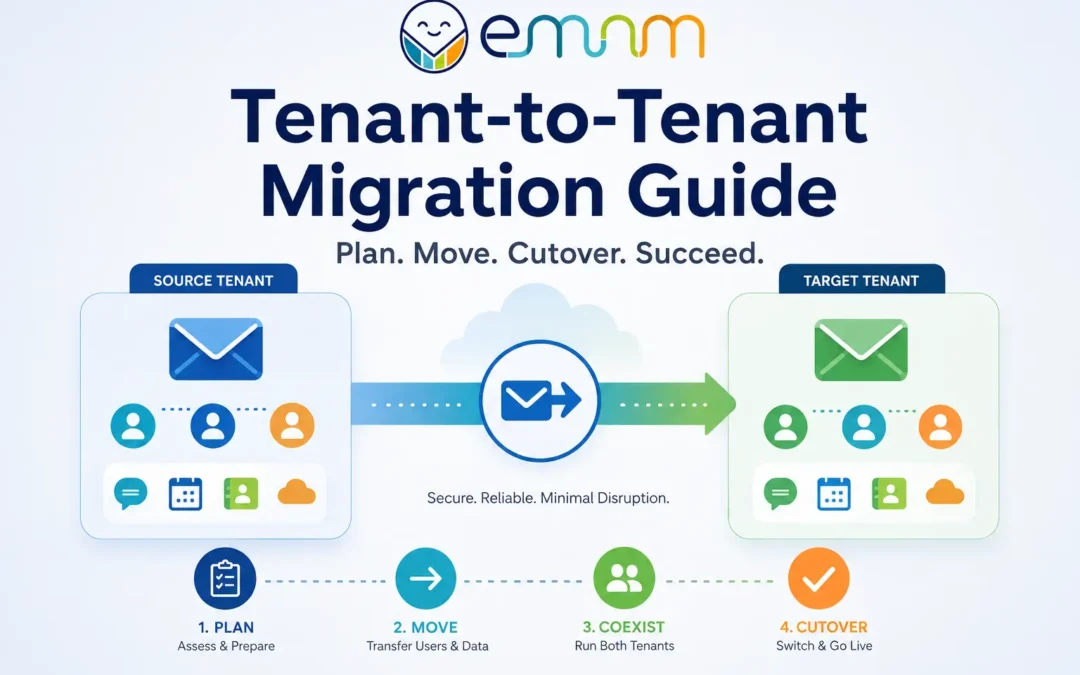
When two companies merge, one acquires another, or a business changes its name, email is one of the first things leadership expects to "just work" on day one. In Microsoft 365, that expectation runs into a hard fact: there is no merge button. Microsoft's own support community confirms that the admin portal has no direct option to combine two tenants into one. Moving people, mailboxes, and a company domain from one Microsoft 365 environment to another is a planned project with a specific order of operations.
This guide explains how a Microsoft 365 tenant-to-tenant migration works, what moves and what does not, how the domain move and coexistence period are handled, and the cutover sequence that keeps mail flowing. A "tenant" is simply your company's own Microsoft 365 environment: its users, mailboxes, files, and settings.
Key takeaways
- A tenant-to-tenant migration moves users and data between two separate Microsoft 365 environments. It is most often triggered by a merger, acquisition, divestiture, or rebrand.
- Microsoft's native mailbox tool requires a per-user license and blocks the move of any mailbox on hold.
- A custom domain can only live in one tenant at a time, so the domain move is a scheduled cutover event, not a background task.
- Teams channels, SharePoint sites, and Microsoft 365 Groups are not covered by the mailbox and user-data tools and need their own plan.
- Most failures come from preparation gaps (licenses, holds, leftover domain references), not from the data transfer itself.
What is a tenant-to-tenant migration?
A tenant-to-tenant migration (also called a cross-tenant migration) moves users, mailboxes, files, and collaboration data from one Microsoft 365 tenant to another. Microsoft notes that these projects are normally part of mergers, acquisitions, and divestitures. The right plan depends on which of these situations you are in:
| Scenario | What it usually means | Domain move likely? | Main risk |
|---|---|---|---|
| Acquisition | The acquired company's users move into the buyer's tenant | Often, if acquired staff keep their old addresses | Keeping both companies productive while they run side by side |
| Merger | Two companies consolidate into one surviving (or brand new) tenant | Depends on the new brand | Settling the identity and domain plan before anything moves |
| Rebrand | One company moves to a new tenant under a new name | Yes, if the old domain is retired or redirected | Old addresses, forwarding, and outside contacts |
| Divestiture | Part of the business splits off | Usually a new domain for the spun-off unit | Untangling shared mailboxes, groups, and data ownership |
Which situation are you in?
Pick your scenario to see what it usually involves.
What moves natively, and what does not
What Microsoft's native tools cover
Filter by coverage. Based on Microsoft Learn documentation as of October 2026.
| Workload | Individual cross-tenant tools | Migration Orchestrator |
|---|
Green = covered. Amber = covered with conditions. Red = not covered by this tool. Recheck quarterly, as Microsoft is still changing these tools.
Microsoft's native tools cover more than they used to, but they stop short of a full "move everything" button. This is the part of the project most often underestimated.
| Workload | Covered by native tools? | What to know |
|---|---|---|
| Email, calendar, contacts, tasks, notes | Yes | The cross-tenant mailbox migration moves user-visible mailbox content |
| OneDrive | Yes | The same per-user license also covers OneDrive migration, per Microsoft's licensing guidance |
| Teams chats and meetings | Partly | Handled through Migration Orchestrator, with the Teams meeting workload depending on mailbox and chat migration |
| Teams channels and SharePoint sites | No (separate process) | Microsoft states its user-data solution does not migrate shared data such as Teams channels or SharePoint sites |
| Microsoft 365 Groups | No | The mailbox migration feature does not support Microsoft 365 Groups |
| Distribution lists and external contacts | No | Microsoft's FastTrack guidance says they are not part of mailbox data migration |
| Outlook signatures | No | Signatures must be recreated by hand, per the mailbox migration FAQ |
| Mailboxes on legal or retention hold | Blocked | The move is blocked until the hold is dealt with |
Two further notes. First, Microsoft's planning guidance says Teams content depends on Exchange mailboxes, so mailboxes move before or alongside Teams. Second, if your company also runs Power Apps or Dataverse, Microsoft supports tenant-to-tenant environment moves only for production and sandbox environments, and some applications need reconfiguration afterward.
Phase 1: Plan before you touch anything
Preparation decides whether the cutover weekend is calm or chaotic. Before any migration batch is created, work through this list.
Build a complete inventory. Count user mailboxes, shared mailboxes, room and resource mailboxes, groups, and distribution lists. Note each mailbox's size, archive status, and whether it is on hold.
Decide the identity plan. Every migrating user needs a matching user object in the target tenant. Microsoft requires that target users exist as a MailUser carrying the source mailbox's ExchangeGUID, archive GUID, and legacy x500 address. Skipping or mismatching these attributes is a classic way for a move to fail.
Handle licensing early. Microsoft requires a one-time, per-user Cross-Tenant User Data Migration license, assignable on the source or target user, and states that migrations fail without it and no exceptions are offered. Order of operations matters here too. Microsoft warns that applying a license before the ExchangeGUID is stamped provisions a brand new mailbox in the target instead of connecting the existing one.
Resolve holds and retention. Mailboxes on any type of hold are not migrated. Also plan for what happens to the source copy: after a successful move, the source mailbox is deleted and is no longer discoverable in the source tenant. If your legal or compliance team needs that data later, copy it to a separate mailbox before migrating. Our email security and compliance work often starts exactly here.
Check quotas and archives. Mailboxes at or near their size limit can fail mid-move. Microsoft also notes that if a source mailbox's auto-expanding archive grows during migration, the move fails and the user must be resubmitted.
Group people who depend on each other. Cross-tenant mailbox and calendar permissions are not supported, so Microsoft advises that principals and their delegates move in the same batch. Executive assistants and their executives are the obvious example. Send On Behalf settings do not carry over and must be reapplied after the move.
Know your compliance limits. Microsoft's FastTrack migration service is not designed for data under special legal or regulatory requirements, and cross-cloud moves, such as commercial to government cloud, are not supported. Regulated businesses should confirm this before choosing an approach.
Phase 2: The domain move
The domain move is the step that most often surprises business owners, and it controls the schedule.
A custom domain such as yourcompany.com can be attached to only one Microsoft 365 tenant at a time. Microsoft's own mailbox migration documentation states that source and target tenants cannot use the same domain name during a native mailbox move. In practice, mailboxes move first using the target tenant's addresses, and the old domain is released from the source and attached to the target at the end. Guidance from a migration specialist explains that when you want to keep users' original email addresses, the domain has to be transferred between tenants, and that once it is validated in the target tenant, you can add it as a secondary address so old email addresses keep working.
The sequence looks like this:
- Inventory everything that references the domain. Microsoft will not release a custom domain while source-tenant objects still point at it, and an unexpected leftover is the greatest risk to the cutover. A managed-services firm's checklist lists user principal names, proxy addresses, groups, shared and resource mailboxes, Teams voice numbers, app registrations, enterprise applications, and Exchange connectors as the usual hiding places.
- Lower your DNS TTL ahead of time. One migration vendor's cutover guide recommends shortening the MX record TTL before the switch so changes take effect quickly.
- Remove the domain from the source tenant once nothing references it.
- Add and verify the domain in the target tenant with the TXT record Microsoft provides, then assign it to users as a primary or alias address.
- Repoint DNS. The records to update include MX, autodiscover, SPF, DKIM selectors, DMARC, and any Teams or Skype records. Getting SPF, DKIM, and DMARC right matters for deliverability, which is why we cover it in our guide to preventing email phishing and spoofing with DMARC.
The same managed-services guidance describes the domain cutover itself as typically a one to two day window, often scheduled over a weekend to limit business impact. Its best-practice advice is to script a dependency check ahead of time and rehearse the removal on a lower-stakes subdomain first.
Phase 3: Coexistence while both tenants are live
For weeks, and sometimes months, your people are split across two tenants. During that time they still need to email each other, see each other's availability, and schedule meetings.
Mail flow. After a mailbox moves, Microsoft says cross-tenant mail flow works similarly to Exchange hybrid: the leftover mail user in the source tenant forwards incoming mail to the mailbox in the target. Security features such as anti-spam and transport rules run in the source tenant first, then in the target.
Free/busy and shared calendars. This is where coexistence is weakest. Cross-tenant free/busy works more like a lookup than a synchronized calendar, and full calendar delegation across tenants does not work natively. Temporary shared calendars or third-party calendar sync are the usual workaround when the business cannot tolerate the gap.
A change to know about now. Microsoft is replacing organization relationships and sharing policies for free/busy, calendars, and MailTips with the Microsoft 365 Cross-Tenant Access Policy, because Exchange Web Services is being deprecated. The new policy is an inbound setting, so for two-way sharing both organizations must configure it, and Microsoft says the rollout may not have reached every tenant yet. One detail matters for migrations in particular: if the same organization relationship is also used for cross-tenant mailbox migration, that configuration must be moved to a new relationship before the free/busy migration is completed.
Hybrid environments. If either company still runs on-premises Active Directory or Exchange, the extra complexity is real. Microsoft notes the migration does not touch on-premises systems, so the target address for each on-premises user must be updated manually after the mailbox moves.
Phase 4: The cutover sequence
The cutover sequence
Click each step for detail. Mark steps as you go to track progress.
Every environment is different, but a well-run native migration follows this overall order.
- Weeks out: stand up the target. Create the migration application, endpoint, and organization relationship, provision the target MailUsers with the correct attributes, and run Microsoft's validation script to catch mismatches in bulk before they cause failures.
- Pilot first. Move a small group, including at least one delegate pair and one shared mailbox, and confirm that mail flow, calendars, and Outlook behave as expected.
- Start syncing early. Microsoft recommends submitting batches two weeks before the cutover date, since users see no impact during the sync, and keeping batches under 2,000 mailboxes.
- Complete each wave. When a batch finishes, those users switch over. On day one, they need to rebuild their Outlook profile using the new sign-in name and primary address and let their mailbox cache resync, so plan for network load when many people do this at once. Teams meeting links are not updated during migration, so meetings must be removed and recreated.
- Run the other workloads on their own track. OneDrive, Teams chats, SharePoint sites, and Teams channels follow their own tools and timelines, in the dependency order described earlier.
- Release and move the domain. Complete the domain steps above, ideally over a weekend.
- Validate. Test inbound and outbound mail from both internal and outside addresses, shared mailboxes, mobile devices, and authentication records.
- Clean up. After the project, remove the migration endpoints and organization relationships. Keep the source tenant until retention, legal, and audit needs are satisfied, then decommission it.
A worked example (hypothetical)
Imagine a 120-person company acquiring a 40-person firm that wants to keep its old email addresses. The inventory turns up three mailboxes on legal hold, two executives with delegate assistants, a shared mailbox used by the whole accounting team, and a few groups that still reference the acquired company's domain.
Here is how the phases above apply. The holds are resolved, and the source data preserved, before any batch is created. Each executive moves in the same batch as their assistant. Syncing starts two weeks before the first user wave, a pilot group goes first, and the domain cutover is scheduled for a weekend once a dependency check shows that nothing in the source tenant still points at the domain. This is an illustration, not a client case, and nothing in it is unusual. That is the point: projects like this succeed or fail on preparation.
Common failure points
| What goes wrong | Why it happens | How to prevent it |
|---|---|---|
| Domain removal is blocked | Leftover references in the source tenant (aliases, groups, apps) | Run a dependency check days ahead and clean up in advance |
| A duplicate empty mailbox appears | License applied before the ExchangeGUID was stamped | Stamp attributes first, license second |
| Migration fails on license errors | No Cross-Tenant User Data Migration license on the user | Verify licensing before building batches |
| Mailboxes skipped or blocked | Legal or retention hold | Resolve holds, and copy data first if the source copy is needed later |
| Moves fail partway | Mailbox at quota, or archive expanded during the move | Check sizes and archives before submitting batches |
| Delegates lose access | Executive and assistant moved in different batches | Group dependent mailboxes together |
| Users locked out of Outlook on day one | Profile still points to the old address and sign-in name | Communicate the profile rebuild and schedule help-desk coverage |
| Meetings break | Teams meeting links do not carry over | Plan to recreate recurring meetings |
| Outside mail lands in spam | SPF, DKIM, or DMARC not updated after the DNS change | Update and test authentication records during cutover |
After cutover: the cleanup list
The project is not finished when the last mailbox moves. Work through these items in the days that follow:
- Reapply any Send On Behalf permissions, which do not carry over.
- Ask users to recreate their email signatures and any recurring Teams meetings.
- Confirm free/busy and calendar sharing under the new Cross-Tenant Access Policy if the two organizations still work together.
- Recheck SPF, DKIM, and DMARC, and send test messages to outside recipients.
- Schedule help-desk coverage for Outlook profile problems during the first week.
- Remove the migration endpoints and organization relationships, then keep the source tenant until your retention, legal, and audit requirements are met.
Should you do it yourself or hire a partner?
Native Microsoft tools are workable when you have a small user count, clean data, no holds, in-house skills in Exchange and Entra ID, and a flexible deadline. They are a poorer fit when you have regulatory obligations, hybrid infrastructure, shared data like Teams channels and SharePoint to move, executives who cannot lose a day of email, or a hard close date driven by a deal.
How complex is your migration?
Tick everything that applies. This is a planning aid, not a Microsoft rating.
Questions to ask any migration partner
Use these to compare providers, whether or not you hire EMNMS:
- How do you identify everything that still references our domain before removing it from the source tenant?
- How do you handle mailboxes on legal or retention hold, and how is source data preserved?
- In what order do you set mailbox attributes and assign licenses, and how do you avoid duplicate mailboxes?
- How will you group executives, assistants, and shared mailboxes into batches?
- What is the plan for Teams channels, SharePoint sites, and Microsoft 365 Groups, which the mailbox tools do not cover?
- What will employees see during coexistence, including free/busy and shared calendars?
- How do you rehearse the domain cutover, and what happens if it hits a problem?
- Do you have experience with our regulatory requirements, and what support follows the cutover?
Cost is part of the decision, and a migration of this kind is priced differently from a standard mailbox move. Our email migration cost guide explains what drives migration pricing in general. If your project involves a domain transfer and coexistence, the complexity usually lies in the planning rather than in the data volume.
EMNMS lists tenant-to-tenant migrations among its email migration services, and larger or more complex projects are scoped and quoted per project. If you are also changing platforms as part of the deal, see our step-by-step guides for moving from Microsoft 365 to Google Workspace and moving from Google Workspace to Microsoft 365. Once the move is done, our managed user onboarding and offboarding and managed email administration services help keep the new combined environment tidy as people join and leave.
Planning a merger, acquisition, or rebrand? Get a free migration assessment from EMNMS or call 1-844-366-6700. Most migration problems are created in the planning stage, and a short scoping conversation is the cheapest place to find them.
Key terms
- Tenant: your organization's own Microsoft 365 environment, with its users, mailboxes, files, and settings.
- Coexistence: the period when your people are split across two tenants and still need to email and schedule with each other.
- MailUser: a directory object representing a user whose mailbox lives somewhere else. The target tenant needs one for each migrating user.
- ExchangeGUID: the unique identifier of a mailbox. Matching it between tenants is what lets the migration connect to the right mailbox.
- MX record: the DNS setting that tells the internet where to deliver your email.
- TTL: how long DNS servers cache a record. A shorter TTL makes a DNS change take effect faster.
- UPN (user principal name): the sign-in name a person uses, usually shaped like an email address.
Frequently asked questions
What is a tenant-to-tenant migration?
A tenant-to-tenant migration moves users, mailboxes, files, and related data from one Microsoft 365 environment (tenant) to another. It is most common during mergers, acquisitions, divestitures, and rebrands, when a business needs to consolidate or separate its Microsoft 365 setup.
Can I merge two Microsoft 365 tenants into one?
There is no built-in merge feature. Instead, you choose a surviving tenant, migrate users and data into it using Microsoft's cross-tenant tools or a third-party tool, move the company domain if needed, and then retire the other tenant.
Can two tenants use the same domain name at the same time?
No. A custom domain can be attached to only one Microsoft 365 tenant at a time. To keep your original email addresses, the domain is removed from the source tenant and added to the target tenant during a planned cutover.
What does Microsoft's native cross-tenant migration move?
The mailbox migration moves email, contacts, calendar items, tasks, and notes. Microsoft's user-data tools also cover OneDrive and, through Migration Orchestrator, Teams chats and meetings. Teams channels, SharePoint sites, and Microsoft 365 Groups need separate handling.
Do I need special licenses for a cross-tenant migration?
Yes. Microsoft requires a one-time, per-user Cross-Tenant User Data Migration license, which can be assigned to the source or the target user. Migrations fail for users who do not have it, so it should be in place before you create migration batches.
Will Teams channels and SharePoint sites move with the mailboxes?
No. Microsoft's mailbox and user-data migration tools do not move shared data such as Teams channels or SharePoint sites. These workloads are migrated separately, and Teams content depends on mailboxes being moved first or at the same time.
Can mailboxes on legal hold be migrated?
No. Microsoft blocks the cross-tenant move of any mailbox that is on a hold. The hold has to be handled first, and if the source copy is needed later for legal or audit reasons, it should be preserved before the migration because the source mailbox is deleted afterward.
What do employees need to do after their mailbox is moved?
Users typically need to rebuild their Outlook profile with their new sign-in name and primary email address, recreate any Teams meetings because the old meeting links stop working, and re-add their email signatures, which are not migrated.
When should a business hire a professional instead of doing it in-house?
Hiring a partner makes sense when the project involves regulated data, hybrid infrastructure, shared workloads like Teams and SharePoint, a hard deadline tied to a deal, or executives and teams who cannot afford disruption. Small, clean environments with in-house Exchange and Entra ID expertise can often use the native tools.
Ready to Make the Switch or Just Want a Second Opinion?
Choosing between Microsoft 365 and Google Workspace isn’t just a features decision — it’s a decision about how your team will work for the next several years. If you’re not sure which platform fits your business, or you’ve already decided and want the migration handled without downtime, lost email, or a week of troubleshooting DNS records yourself, EMNMS can help.
Get a Free Migration Consultation with EMNMS →
We’ll walk through your current setup, your team’s actual workflow, and give you a straight answer, not a sales pitch, on which platform fits and what a clean migration would look like.
Read More: The Ultimate Guide to Email Migration
Recent Comments