
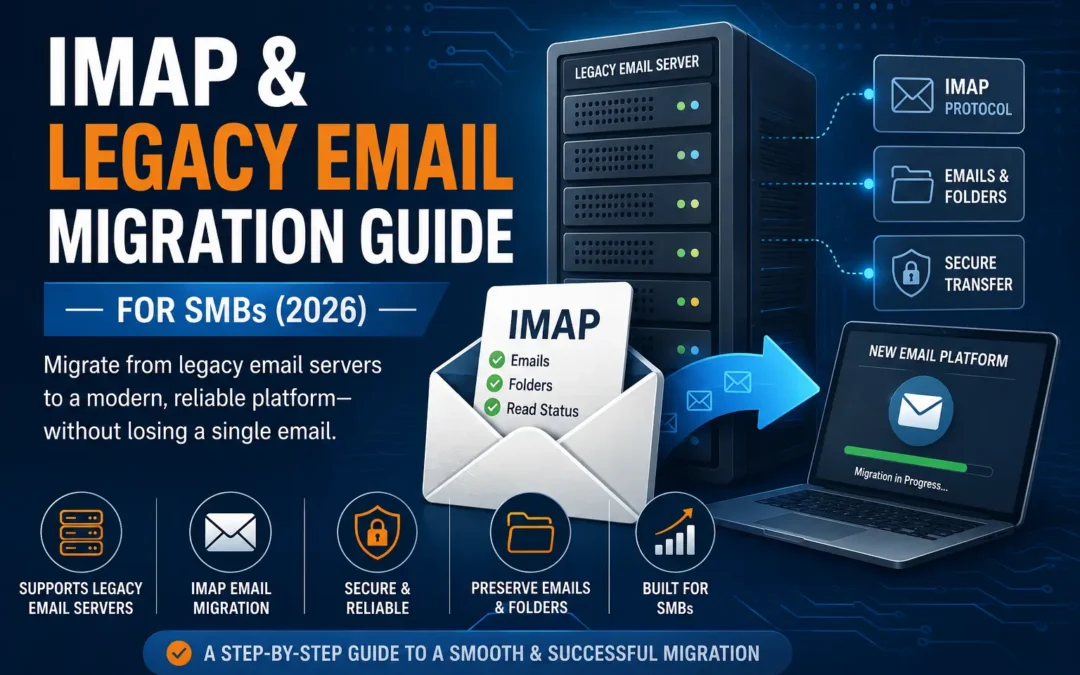
If your business email still lives on a cPanel host, GoDaddy, Bluehost, Zimbra, Rackspace, or some other IMAP-based server your IT person set up a decade ago, you’re not alone. A lot of small businesses are running on infrastructure nobody has touched in years, and moving off it feels riskier than just leaving things as they are.
The good news: IMAP migrations are some of the most well-understood moves in the email world. IMAP has been the universal connector for mail servers since 1994, and nearly every legacy host speaks it. That means there’s almost always a path off your old system, even if your provider doesn’t offer a “click here to migrate” button.
This guide walks through what an IMAP migration actually moves, what it leaves behind, and the exact steps to get your business onto Microsoft 365 or Google Workspace without losing a single email.
What Is IMAP Migration, Exactly?
IMAP migration is the process of connecting to your old mail server using the IMAP protocol and copying your messages and folder structure over to a new mailbox on Microsoft 365 or Google Workspace. It’s the fallback method used whenever there’s no dedicated, purpose-built connector between your old system and your new one, which is common with:
- cPanel and Plesk-based hosting (common with GoDaddy, Bluehost, HostGator, and similar providers)
- Zimbra
- Rackspace Email
- Yahoo Small Business Email
- Self-hosted servers running Dovecot or similar software
- Older, discontinued hosted email platforms
Because IMAP is a lowest-common-denominator protocol, it’s reliable, but it’s also limited. Understanding those limits before you start is the difference between a clean migration and a frustrating one.
What IMAP Migration Does (and Doesn’t) Move
This is the part that trips up most SMBs, so it’s worth being direct about it upfront.
IMAP migration moves:
- Email messages
- Folder structure (inbox, sent, subfolders, and so on)
- Message read/unread status, in most cases
IMAP migration does NOT move:
- Contacts
- Calendars
- Tasks or notes
- Mail rules and filters
- Distribution lists or shared mailbox permissions
If your business depends on shared calendars or synced contacts (and most do), you’ll need a separate migration step or a tool that bundles those workloads in with the mail transfer. We’ll cover both options below.
There are also a couple of hard technical limits to plan around. Microsoft’s native IMAP migration path caps out at 500,000 items per mailbox and a maximum message size of 35 MB. If any of your team members have mailboxes that exceed those thresholds (which happens more often than you’d expect with long-tenured employees), you’ll want to flag that before you start rather than discovering it mid-migration.
Before You Start: What You’ll Need
Regardless of which destination platform you’re moving to, gather this information for every mailbox in scope:
- IMAP server hostname and port for your current provider (your host’s support documentation or your original setup email usually has this)
- Email address and password for each mailbox (app-specific passwords if your old host requires them)
- A full list of users who need mailboxes migrated
- Licensed, already-created mailboxes on the destination platform (this is critical: IMAP migration does not create mailboxes for you)
- A recent backup of your old mail server, just in case
Also worth doing before you touch anything: clean up. Delete obviously junk folders, archive anything you don’t need moved, and confirm mailbox sizes so you know whether any of them will bump against Microsoft’s item or size caps.
Step-by-Step: Migrating IMAP Email to Microsoft 365
- License and create destination mailboxes. Every user needs an active Microsoft 365 mailbox before migration starts. This is the step people skip and then wonder why the migration fails.
- Gather IMAP connection details for the source server (hostname, port, and credentials for each account).
- Build a migration CSV listing source and destination email addresses, along with the IMAP credentials for each mailbox.
- Create an IMAP migration batch in the Exchange admin center, upload your CSV, and configure the batch settings.
- Run the batch and monitor progress. Large mailboxes and slower source servers will extend the timeline, so don’t schedule your cutover for the same afternoon on a big migration.
- Run a final incremental sync shortly before cutover to catch any mail that arrived after the initial pass.
- Update your MX records to point to Microsoft 365 once you’re confident the migration is complete and verified.
- Reconfigure email clients (Outlook, mobile mail apps, and so on) for every user to connect to their new mailbox.
- Decommission the old server only after a safety window, generally 2 to 3 weeks, so you have time to catch DNS propagation issues or anything that didn’t transfer cleanly.
Step-by-Step: Migrating IMAP Email to Google Workspace
The process is largely a mirror image, with Google’s tools standing in for Microsoft’s:
- Provision Google Workspace accounts for every user ahead of time.
- Gather IMAP server details and credentials for the old mailboxes.
- Use Google Workspace Migrate, the Google Workspace Migration for Microsoft Exchange (GWMME) tool, or the Data Migration Service (DMS) in the Admin console, depending on your source system and mailbox count.
- Map source mailboxes to destination accounts and configure the migration job.
- Run the migration and monitor for errors, particularly around authentication if your old host uses non-standard IMAP ports or requires app passwords.
- Re-run an incremental sync close to cutover to catch late-arriving mail.
- Update MX records to route new mail to Google Workspace.
- Reconfigure clients for every user.
- Keep the old server active for a safety window before shutting it down for good.
Google’s native tools work well for straightforward moves with up to roughly 100 users and simple inbox needs. If you’re dealing with cross-platform complexity, large attachments, or want contacts and calendars carried over too, a third-party tool will save time.
DIY Tools vs. a Managed Migration
There’s a real decision point here for SMBs: do you run this yourself, or bring in help?
DIY tools worth knowing about:
- Microsoft’s native IMAP migration (free, built into the Exchange admin center, mail only)
- Google’s native migration tools (free, best for smaller and simpler moves)
- imapsync (a free, open-source command-line tool popular with technical users comfortable working outside a GUI)
- BitTitan MigrationWiz (a widely used paid tool; mailbox migration licensing runs around $14 per user, with bundled options available that add document and archive migration for a higher per-user rate)
When DIY makes sense: You have a small team, a technical person on staff or on call, and mailboxes that are reasonably sized and not close to Microsoft’s item caps.
When a managed migration makes more sense: You don’t have in-house IT, you’re migrating a mix of mailbox sizes and legacy systems, you need contacts and calendars preserved alongside mail, or you simply don’t want to be the person troubleshooting a failed batch at 11pm before a Monday morning cutover.
This is exactly the gap EMNMS fills. We handle the credential gathering, the batch configuration, the incremental syncs, the MX cutover timing, and the client reconfiguration for every user, so your team just shows up Monday morning with everything working.
Common Pitfalls to Avoid
- Forgetting to create destination mailboxes first. IMAP migration will not do this for you, on either platform.
- Underestimating large or old mailboxes. Anyone who has never cleaned out their inbox is a candidate for hitting item or size limits.
- Cutting over MX records too early, before verifying the migration actually completed successfully.
- Shutting down the old server immediately. Give yourself a buffer of at least two weeks.
- Assuming contacts and calendars came along for the ride. They didn’t. Plan for them separately.
- Skipping a test batch. Migrate a handful of mailboxes first, verify everything landed correctly, then run the rest.
What Does an IMAP Migration Cost?
Costs vary based on mailbox count, average mailbox size, and whether you handle it yourself or bring in a managed provider. For a full breakdown of typical SMB pricing ranges across DIY, tool-based, and fully managed migrations, see our Email Migration Cost Guide.
If you’re still deciding between Microsoft 365 and Google Workspace as your destination platform, our Microsoft 365 vs Google Workspace comparison breaks down the differences for SMBs.
Frequently Asked Questions
Does IMAP migration move my contacts and calendar? No. IMAP migration moves email messages and folder structure only. Contacts, calendars, tasks, and mail rules need to be migrated separately, or through a third-party tool that supports those workloads alongside mail.
Do I need to create mailboxes before starting an IMAP migration? Yes. Every destination mailbox must already exist and be licensed on Microsoft 365 or Google Workspace before the migration batch runs. IMAP migration does not provision new mailboxes.
Is there a limit on how much email I can migrate per mailbox? On Microsoft 365, native IMAP migration is capped at 500,000 items per mailbox with a maximum message size of 35 MB. Mailboxes that exceed those limits need special handling, which a managed migration service can plan for in advance.
Can I migrate from any hosting provider using IMAP? Almost always, yes. IMAP is supported by the vast majority of hosted email systems, including GoDaddy, Bluehost, Rackspace, Zimbra, Yahoo Small Business, and most self-hosted servers. It’s the universal fallback when there’s no dedicated migration connector.
How long does an old server need to stay active after migration? We recommend keeping the old mail server running for 2 to 3 weeks after cutover. This gives you a safety window for DNS propagation delays and any mail that needs to be re-checked before you decommission anything.
Should I migrate myself or hire a managed service? If you have a small team, in-house technical support, and mailboxes of manageable size, DIY tools can work. If you lack IT support, have a mix of legacy systems, or need contacts and calendars preserved, a managed migration reduces risk and saves time.
EMNMS – Managed Email Migrations, Security, and Management
Still running on a legacy email host? EMNMS handles IMAP and legacy email migrations for SMBs every day, from cPanel and GoDaddy to Zimbra and old on-prem servers. We manage the entire move to Microsoft 365 or Google Workspace, credentials, batching, cutover timing, and client setup, so nothing gets lost and nobody’s inbox goes dark. Get a free migration consultation with EMNMS today.
Recent Comments