
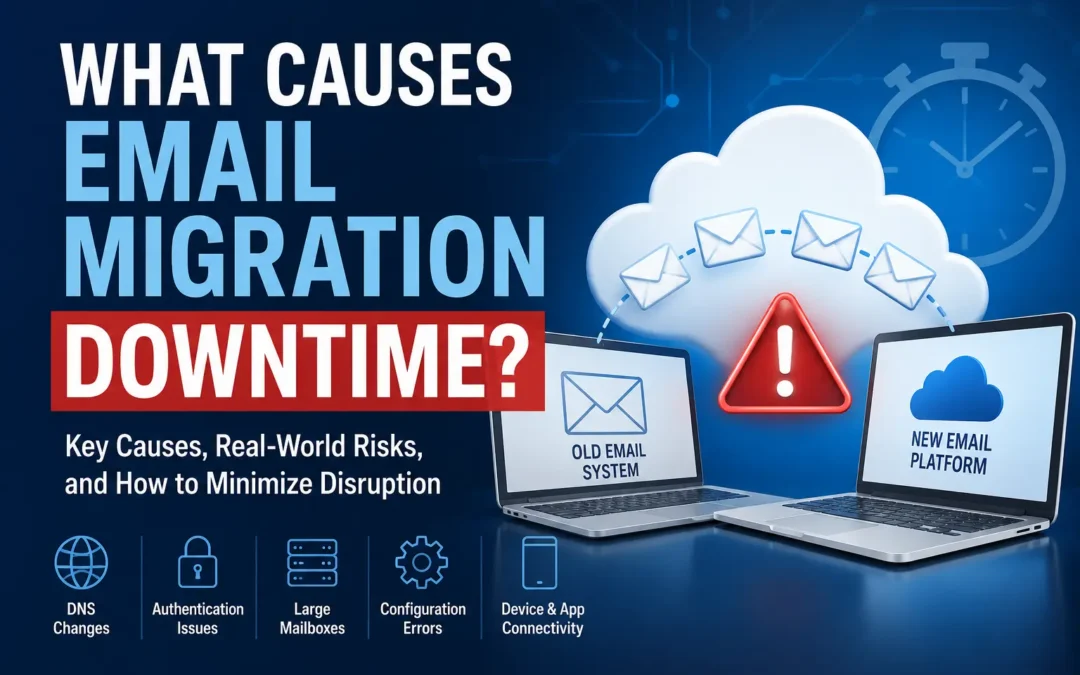
What Causes Email Migration Downtime?
One thing we’ve learned from managing email migrations is that downtime is rarely caused by the actual movement of email data. More often, disruptions come from organizations rushing the planning and preparation phase. Many businesses understandably want to start quickly, assuming this is the fastest path to completion. In practice, we’ve found the opposite is usually true.
The smoothest migrations typically involve more time on the front end. Teams inventory mailboxes, identify shared accounts, review authentication systems, verify DNS settings, document third-party integrations, and test migration workflows before any production changes. We’ve seen an extra day of planning prevent weeks of troubleshooting later.
Well-planned migrations often have little to no impact on daily operations. Users continue sending and receiving email while data transfers in the background, and the final cutover can be nearly invisible. From our experience, the goal is not just moving email from one platform to another, but ensuring employees continue working without disruption. When planning is done correctly, most users never see the complexity behind it.
This is why experienced migration teams invest heavily in preparation, testing, and validation. Time spent upfront is almost always repaid through reduced downtime, fewer support requests, and a smoother experience overall.
What Causes Email Migration Downtime?
Email migration downtime usually occurs when users cannot send, receive, or access email during a transition between systems.
The most common causes include:
- DNS propagation delays
- Incorrect mail routing configurations
- User authentication issues
- Large mailbox data transfers
- Misconfigured migration tools
- Incomplete testing before cutover
- Device and application connectivity problems
- Hybrid environment synchronization failures
In most migrations, the transfer of mailbox data itself is not what causes downtime. Instead, downtime typically happens during the transition of email routing and user access.
This distinction is important because many businesses assume that moving terabytes of email data is the biggest risk. In reality, the greatest risks usually involve configuration changes made during the final migration stage.
Understanding the Difference Between Data Transfer and Downtime
One of the most common misconceptions about email migration is that users must wait while their email data moves.
Modern migration tools work differently.
In many migration projects:
- Mailbox data begins transferring days or weeks before cutover.
- Existing email systems remain operational.
- New messages continue arriving normally.
- Final synchronization occurs during migration weekend or after-hours.
- DNS records are updated.
- Users log into the new platform.
This means mailbox data transfer and downtime are often separate events.
For a deeper overview of how modern migrations work, see our Ultimate Guide to Email Migration Services.
DNS Changes Are the Most Common Cause of Email Downtime
What Are DNS Records?
DNS records tell the internet where your email should be delivered. When an organization changes email platforms, the following records need to be updated:
- MX records
- Autodiscover records
- SPF records
- DKIM records
- DMARC records
Why DNS Changes Create Downtime
After changes are made, internet service providers and mail servers around the world need time to recognize the new settings.
This process is called DNS propagation.
During propagation:
- Some senders may deliver messages to the old system.
- Others may deliver messages to the new system.
- Certain devices may continue using outdated settings.
Most modern migrations are designed to accommodate this transition, but mismanaged DNS updates can temporarily disrupt mail flow.
How Experienced Migration Teams Reduce DNS Downtime
Best practices include:
- Lowering DNS TTL values before migration
- Testing mail flow in advance
- Maintaining access to both environments during transition
- Performing migrations during off-hours
Organizations that follow these practices often experience little or no noticeable disruption.
Authentication Problems Can Lock Users Out
Even when mailbox data transfers successfully, users may still be unable to access their email if authentication systems are not configured correctly. In fact, authentication-related issues are one of the most common causes of post-migration support tickets.
Modern email platforms rely on a combination of identity management systems, multi-factor authentication (MFA), conditional access policies, and single sign-on (SSO) technologies. If any of these components are misconfigured during migration, users may be locked out despite their mailbox being fully available in the new environment.
Password Synchronization Issues
Many organizations use centralized identity platforms such as Microsoft Entra ID (formerly Azure Active Directory) to synchronize user accounts between on-premises and cloud environments.
Problems can occur when:
- Users have different passwords in different systems
- Password synchronization fails before cutover
- Stale credentials remain cached on devices
- User accounts are duplicated or mismatched during migration
For example, an employee may successfully access their workstation but be unable to sign in to Microsoft 365 because their cloud password was never synchronized correctly.
Microsoft provides guidance on identity synchronization and password management through its Entra ID documentation.
Multi-Factor Authentication (MFA) Errors
Multi-factor authentication significantly improves email security, but it can also introduce complications during migration if not planned properly.
Common MFA-related issues include:
- Users enrolling incorrect devices
- Authentication apps not being transferred to new phones
- Security policies requiring re-registration
- Legacy email clients that do not support modern authentication
- Conditional access policies blocking sign-ins from unfamiliar locations or devices
A user may enter the correct password but still be denied access because the second authentication factor cannot be verified.
Organizations should communicate MFA requirements before migration day to reduce user confusion and login delays.
Single Sign-On (SSO) Misconfigurations
Businesses that use Single Sign-On solutions often have additional authentication dependencies that must be validated before cutover.
Key areas that require verification include:
- User identity mappings
- Federation trust relationships
- Security certificates
- Authentication endpoints
- Group memberships and permissions
- Conditional access and security policies
Even a small certificate expiration issue can prevent hundreds or thousands of users from accessing email.
Device and Application Authentication Issues
Authentication problems are not limited to user accounts. Many organizations have devices and applications that rely on email credentials behind the scenes.
These may include:
- Multifunction printers
- CRM platforms
- Help desk systems
- Email marketing tools
- Security monitoring platforms
- Mobile devices
After migration, these systems often require updated credentials, modern authentication methods, or new SMTP settings. If they are overlooked, email functionality may appear broken even though the migration itself was successful.
Why Authentication Problems Are Often Misdiagnosed
One challenge during email migrations is that authentication issues can look like downtime.
Users may report:
- “Email is down.”
- “My mailbox didn’t migrate.”
- “I can’t access Outlook.”
In reality, the mailbox data may be fully intact and accessible. The actual problem is often an authentication failure preventing the user from reaching it.
This distinction is important because resolving a login issue is usually much faster than troubleshooting an actual mailbox migration problem.
For this reason, experienced migration teams perform authentication testing before cutover, validate user sign-in workflows, and maintain rollback procedures in case unexpected access issues arise.
A mailbox can be fully migrated and operational while remaining inaccessible to the user because of authentication or identity management problems. That is why identity planning is just as important as moving the email data itself.
Large Mailboxes Can Extend Migration Timelines
Although mailbox size does not always cause downtime, it can create delays.
Several factors influence transfer speed:
| Factor | Impact on Migration |
|---|---|
| Mailbox size | Larger mailboxes require more transfer time |
| Number of users | More users increase migration complexity |
| Internet bandwidth | Slower connections increase transfer duration |
| Provider throttling | Microsoft and Google sometimes limit transfer rates |
| Number of attachments | Large attachments increase migration time |
A 5 GB mailbox may migrate quickly, but a 200 GB executive mailbox containing years of archived email may require significantly more time.
This is why professional migration teams often pre-stage mailbox data well before the final cutover.
Incomplete Testing Is a Major Downtime Risk
Many migration failures are not caused by technology.
They are caused by inadequate testing.
Common mistakes include:
- Testing only one mailbox
- Failing to test mobile devices
- Ignoring shared mailboxes
- Overlooking email signatures
- Forgetting third-party integrations
- Not validating mail flow
Successful migrations typically include pilot testing before the full rollout.
A pilot group helps identify issues while the impact remains limited.
Mobile Devices Often Cause Unexpected Issues
One area frequently overlooked during email migrations is mobile device connectivity.
Employees commonly access email from:
- iPhones
- Android devices
- Tablets
- Outlook mobile
- Native mail applications
After migration, users may experience:
- Password prompts
- Sync failures
- Missing calendars
- Missing contacts
- Delayed email delivery
These problems rarely affect the email platform itself but can create the appearance of downtime from the user’s perspective.
Organizations should include mobile device testing as part of every migration plan.
Outlook Profile Problems Can Interrupt Access
Microsoft Outlook remains one of the most common business email clients.
During migration, Outlook profiles occasionally require:
- Recreation
- Reconfiguration
- Cache rebuilding
- Credential updates
Symptoms may include:
- Outlook won’t open
- Constant password prompts
- Missing folders
- Stuck synchronization
These issues are especially common in older environments that have accumulated years of configuration changes.
Shared Mailboxes and Resource Accounts Create Hidden Risks
Many organizations focus only on user mailboxes.
However, business operations often depend on:
- Shared mailboxes
- Conference room calendars
- Distribution groups
- Resource accounts
- Service accounts
Examples include:
If these accounts are overlooked, entire departments may temporarily lose access to critical communications.
This is one reason experienced migration teams create detailed inventory lists before beginning a project.
Third-Party Integrations Can Break During Migration
Email systems frequently connect to other business platforms.
Examples include:
- CRM systems
- Helpdesk software
- Marketing automation tools
- Multifunction printers
- VoIP systems
- Security applications
These systems often rely on:
- SMTP authentication
- Service accounts
- API connections
- Email connectors
After migration, those connections may need updating.
Failure to review integrations beforehand can lead to unexpected disruptions even when user mailboxes function perfectly.
Hybrid Environments Introduce Additional Complexity
Organizations migrating from on-premises Exchange often use hybrid configurations.
Hybrid environments allow both systems to coexist temporarily.
While helpful, they add complexity.
Potential issues include:
- Directory synchronization failures
- Mail routing loops
- Duplicate objects
- Permission mismatches
- Synchronization delays
Hybrid migrations generally offer greater flexibility but require careful planning and monitoring.
Common Mistakes That Increase Downtime Risk
The following mistakes account for many migration-related disruptions:
Migrating During Business Hours
Major changes should typically occur after-hours or on weekends.
Skipping Pilot Testing
Testing with a small group often reveals issues before company-wide deployment.
Ignoring Legacy Applications
Older applications may still depend on outdated email settings.
Underestimating User Communication
Users need clear instructions about:
- New login procedures
- Password requirements
- Device updates
- Migration schedules
Not Having a Rollback Plan
Every migration should include a documented contingency plan.
How Businesses Minimize Email Migration Downtime
Organizations that experience the smoothest migrations usually follow the same process.
Pre-Migration Assessment
Identify:
- Mailboxes
- Shared resources
- Integrations
- Security requirements
Pilot Migration
Test with a small user group.
Data Pre-Staging
Move mailbox data before cutover.
DNS Preparation
Adjust TTL settings and validate records.
User Training
Provide instructions before migration day.
Final Synchronization
Transfer remaining data.
Cutover
Redirect mail flow.
Post-Migration Validation
Confirm:
- Mail delivery
- Calendar functionality
- Mobile device access
- Shared mailbox permissions
This approach significantly reduces the likelihood of downtime.
How Much Downtime Should Businesses Expect?
For properly planned migrations:
| Migration Type | Typical User Impact |
|---|---|
| Microsoft 365 tenant migration | Minimal to a few hours |
| Google Workspace migration | Minimal to a few hours |
| Exchange to Microsoft 365 | Several minutes to a few hours |
| Hybrid migration | Usually minimal |
| Large enterprise migration | Varies based on complexity |
Every environment is different, but extended multi-day email outages are uncommon when migrations are planned correctly.
Frequently Asked Questions
Does email migration always cause downtime?
No. Many modern migrations are designed so users continue working throughout most of the process. Brief interruptions may occur during cutover or account reconfiguration.
What causes the longest email migration outages?
The longest outages are usually caused by configuration errors, authentication issues, DNS mistakes, or unexpected integration failures rather than mailbox data transfer itself.
Can emails be lost during a migration?
When migrations are properly planned and validated, email loss is uncommon. Multiple synchronization passes are typically performed before final cutover.
How long does DNS propagation take?
DNS changes often begin updating within minutes but can take up to 48 hours in some environments depending on caching behavior.
Should email migrations happen after business hours?
In most cases, yes. Performing final cutover during evenings or weekends reduces operational impact and provides additional time for validation.
Final Thoughts
Email migration downtime is usually caused by configuration changes, authentication issues, and mail routing transitions rather than the movement of email data itself.
The organizations that experience the least disruption are those that spend time preparing before migration day. Thorough testing, proper DNS planning, user communication, and post-migration validation often make the difference between a seamless transition and a frustrating outage.
While every migration carries some level of risk, modern migration tools and proven implementation processes allow most businesses to move to new email platforms with minimal interruption to daily operations.
Making the Move With Confidence
An email migration doesn’t have to be a white-knuckle experience. The organizations that come out the other side with their sanity intact are the ones that treated it as a project with real phases, real risks, and real stakeholders — not just an IT task to knock out over a long weekend.
With the right planning, the right tools, and the right support, an email migration is an opportunity to set your team up with a more reliable, more capable platform. The disruption, when it happens at all, is temporary. The benefits of a well-run email environment compound over time.
If you’re weighing a migration and not sure where to start, or if you’ve been burned by a migration gone sideways in the past, our email migration services are built around making this process as smooth as possible for your team. We also offer ongoing email support and fully managed email administration for organizations that want expert hands on their email environment long after the migration is done.
EMNM eMail Migration n’ Management specializes in business email services including email migration, email support, and managed email administration. Learn more at emnms.com.
Recent Comments